
You write. The format sets itself.
Senaryum recognises slug lines, action, characters and dialogue as you type, and sets the indents and capitals for you. It runs in the browser and needs no install. When you're done, you get a PDF with a title page, ready to send.
Start writing without an account; you need one to download and keep your work.
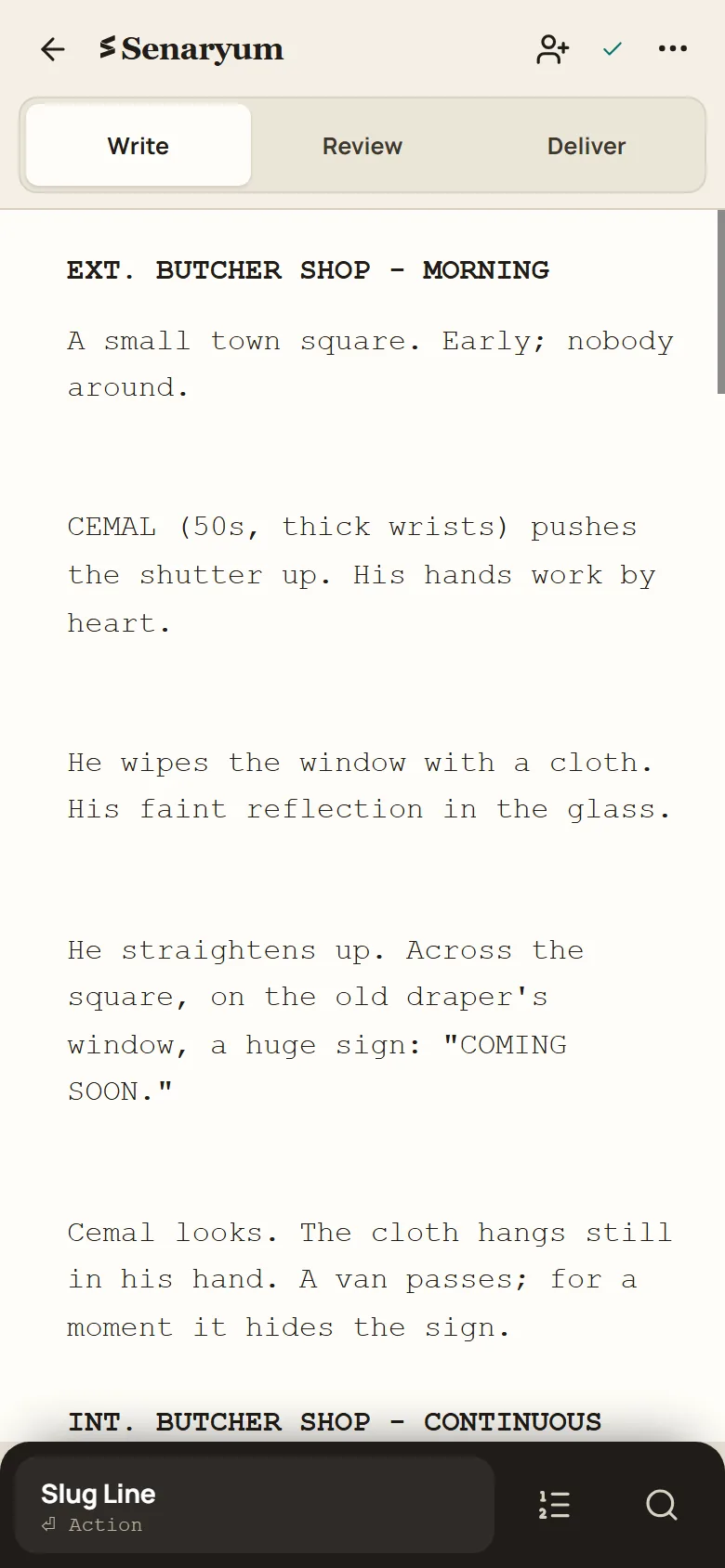
Write without fighting the format.
Three modes, each on its own screen: Write, Review, Deliver.
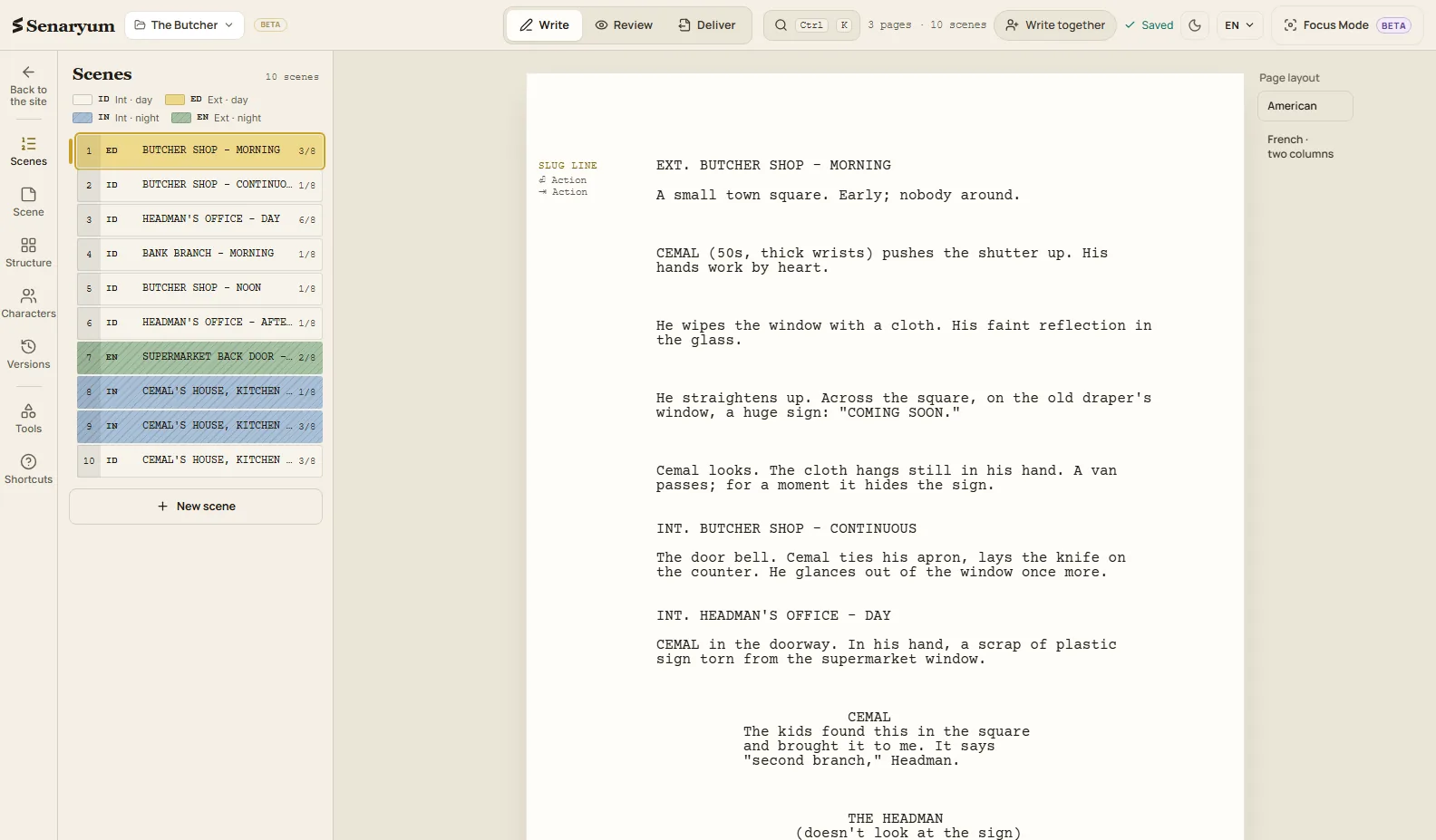
The format sets itself
Senaryum recognises slug lines, action, characters and dialogue as you type and sets the indents and capitals itself. Enter moves to the next line type; Tab jumps to the next part of the slug line. It remembers your locations and character names and suggests them next time: type a name that's already in the project, press Enter, and the line becomes a character line.
You see page breaks and page numbers as you write, so you always know how long the script runs. On the left, the scene strip marks every scene by colour and letter code — interior or exterior, day or night — with its length in eighths of a page. Leave yourself a note: the note line stays on screen and never goes into the PDF.
In Focus mode only the page you're writing stays on screen. Typewriter scrolling keeps your line near the middle of the screen. Write in Turkish, English, Spanish or Portuguese; the slug-line abbreviations (INT./EXT.) follow the language you choose.
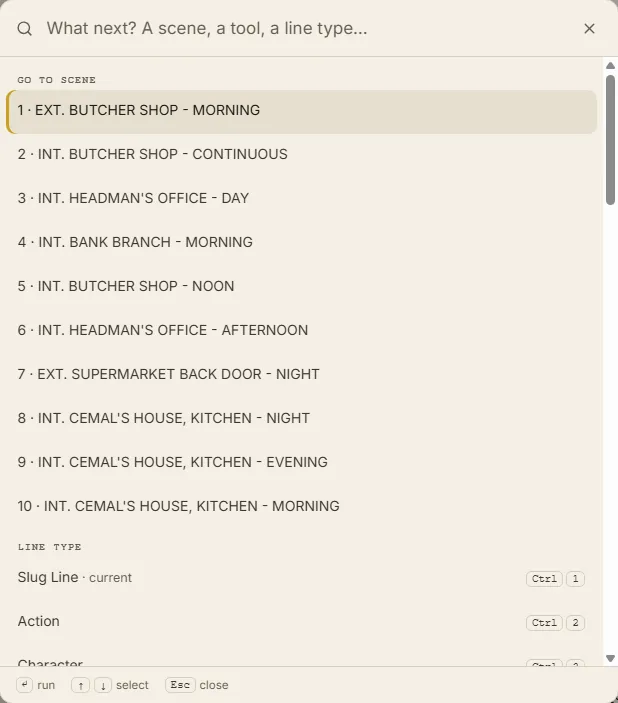
Reach everything from the keyboard
Ctrl+K opens the command box. Type a scene's name to jump to it, open a tool, or change the type of the line you're on. Every line type has its own shortcut (Ctrl+1 slug line, Ctrl+2 action…); they're all listed in the Shortcuts window.
Write on your phone too
On your phone the same script opens with the same three modes. With an account, the scene you wrote on the phone opens on your computer too. The screen is small, so writing works a little differently:
- With the keyboard open, a single row of line types sits at the bottom; you pick the type with one tap and the keyboard stays open.
- On a character line the row suggests the names already in the project.
- Type a name that's appeared before and press Enter: the line becomes a character line, and one tap undoes it.
- Switch the text size between Small, Medium and Large; the PDF doesn't change.
- In Deliver the PDF button stays at the bottom of the screen while you scroll through the settings.
It stays fast on long scripts
It doesn't lag on a feature or a TV episode. Senaryum was tested with a 240-scene script: the letter is on screen the moment you press the key. Jump to any scene from the scene strip or the search. There's no limit on pages, scenes or projects.
Write together, and talk while you work
With Write together you open your script to one person: you send the link and they join with their account. They read while you write, and it changes on their screen as you type. Hand them the pen and they write; take it back whenever you like. Only one person writes at a time, so two people's sentences never overwrite each other, and a version is saved at every handover.
While you work you can talk by voice or video: the call opens without leaving Senaryum, with the page in front of both of you. Calls have a monthly time limit, and you see the minutes you have left in the room.
Build the film before the script.
Senaryum isn't only a script page; the whole preparation of the film sits in the same project.
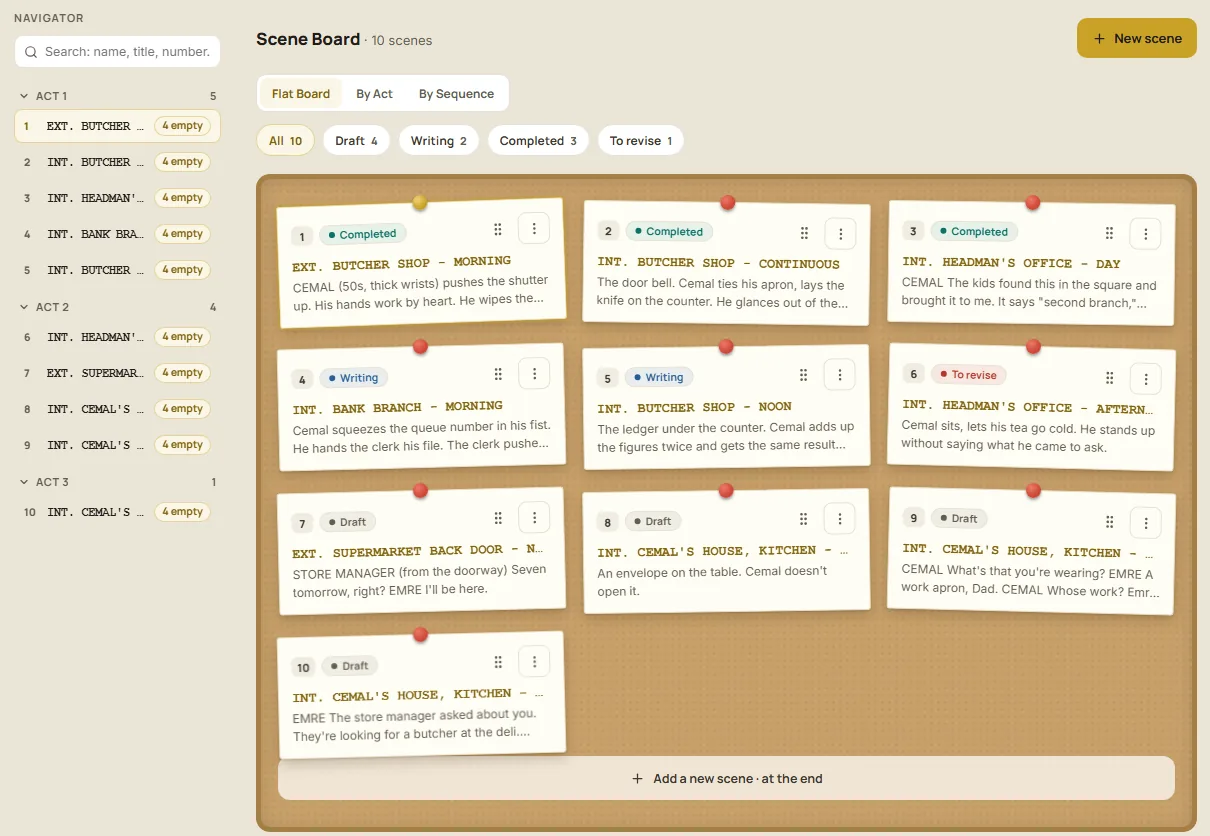
See the whole film on a board
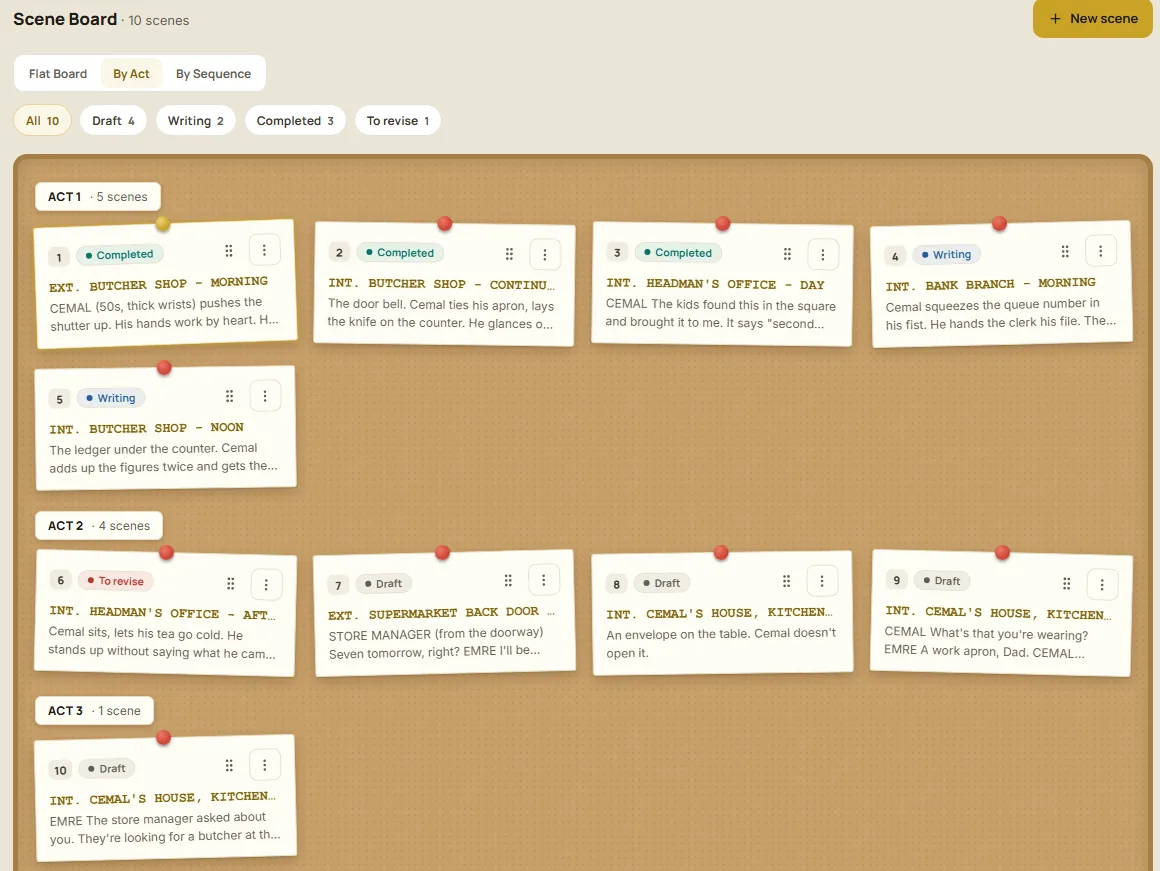
The Scene Board turns your script into index cards: every scene becomes a card on a corkboard, showing its slug line, its first lines and its status. Drag the cards to move scenes around, and the script reorders itself to match. Mark a card with a colour, duplicate it or delete it.
Every scene has a status: draft, writing, done or to revise. Filters above the board show just one. The Navigator lists scenes by act and lets you search them. Every scene also has an info card — its purpose, what the character wants right then, the obstacle, and what has changed by the end. The Navigator counts the ones you've left empty.
Arrange it by acts and sequences
The same board opens in three views. Flat shows every scene in order. By Act splits scenes into the first, second and third act; scenes without an act yet sit apart. By Sequence groups scenes into sequences you name yourself. Changing a scene's act or sequence never touches the script's text.
Line up the story's turning points
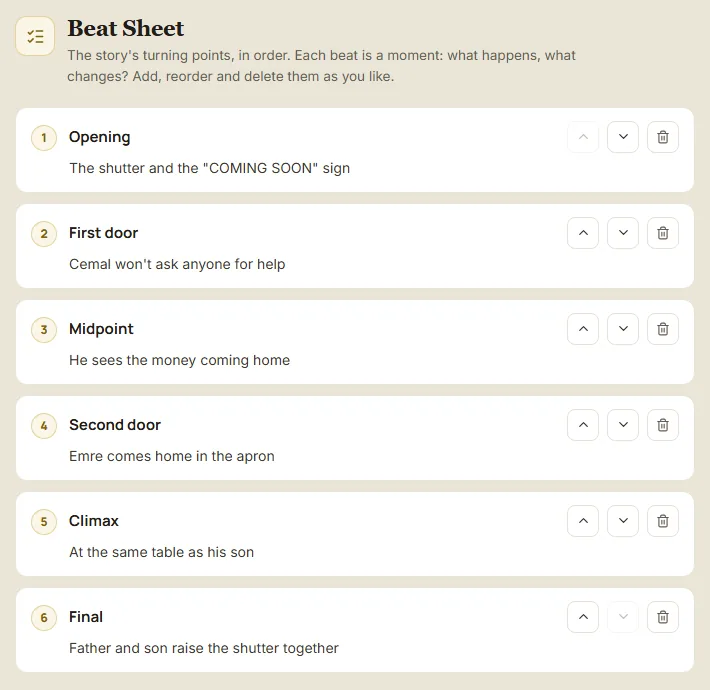
In the Beat Sheet you write the story's turning points in order: opening, first door, midpoint, second door, climax, finale — or names of your own. Each beat gets a short description, and arrows move it. You build the film's skeleton on one screen before you move to the script.
Put events in the order they happened
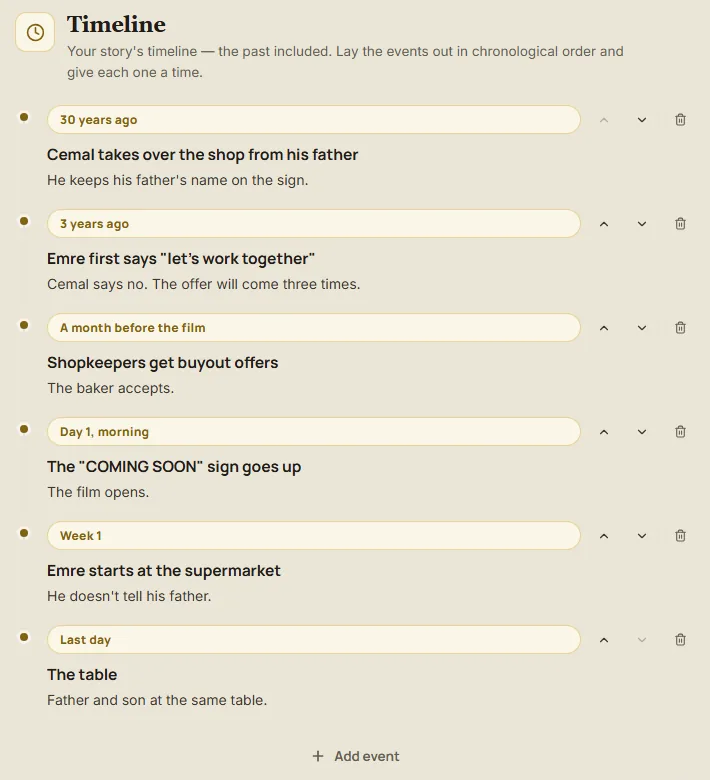
The Timeline is the story's chronology, and it reaches back before the film begins. The script may tell events in a different order, but here each event goes where it really happened: "30 years earlier", "day 1, morning", "the last day". In a story with flashbacks or several time frames, you never lose track of what happened when.
All the preparation in one project
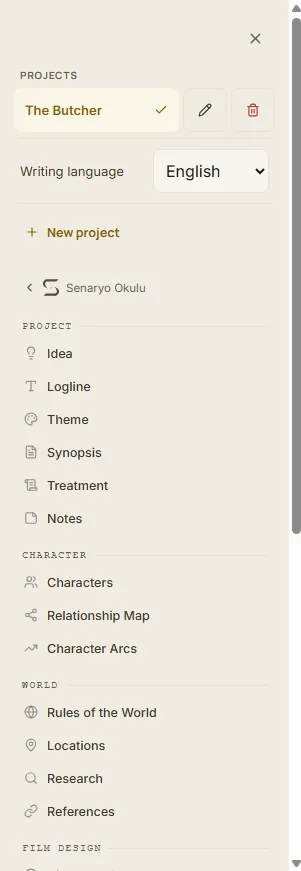
The Tools menu has seven groups, all tied to the same script. Open as many projects as you like; each has its own documents, characters and scenes.
- Project documents: idea, logline, theme, synopsis, treatment and notes.
- World: rules of the world, locations, research notes and references.
- Film design: director's statement and notes on visual and sound design.
- Sequences: group your scenes and see each group on its own.
Know what every character wants.
Character cards sit one click away while you write; you never open another file to check.
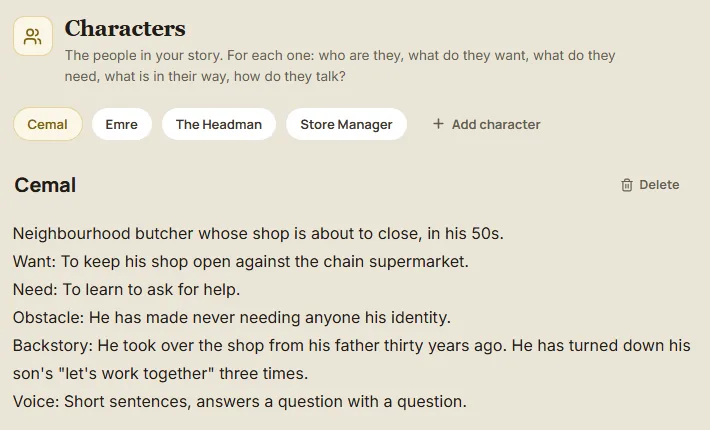
Every character has a card
On each character's card you write who they are, what they want, what they need, the obstacle in front of them, their past and how they talk.
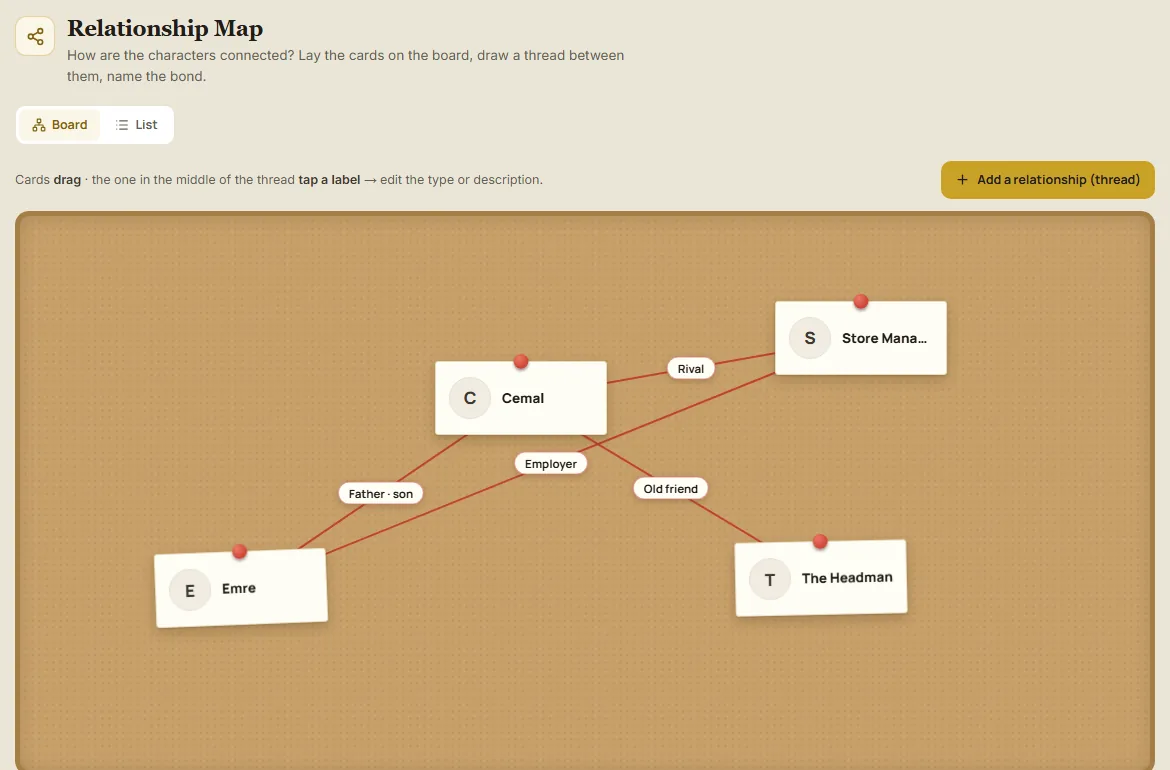
Tie characters together on a board
The Relationship Map lays your characters out on a board. Drag the cards wherever you like, draw strings between them and give every string a name: father and son, old friend, rival. Click the label in the middle of a string to write the kind of relationship and a description. You can see the same relationships as a list too.
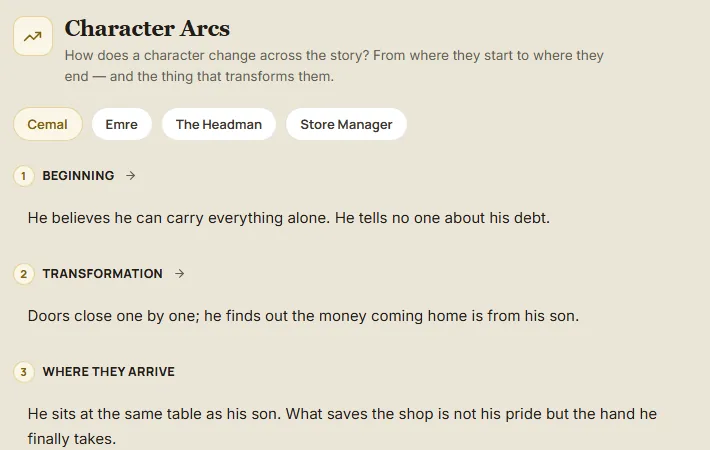
Write where a character goes
Character Arcs asks three questions for every character: how do they start, what changes them, who are they at the end. Start, change and arrival sit side by side, so you see whether a character changes before you start writing.
Read it like a reader. Send it ready.
When the draft is done, Review and Deliver take over.
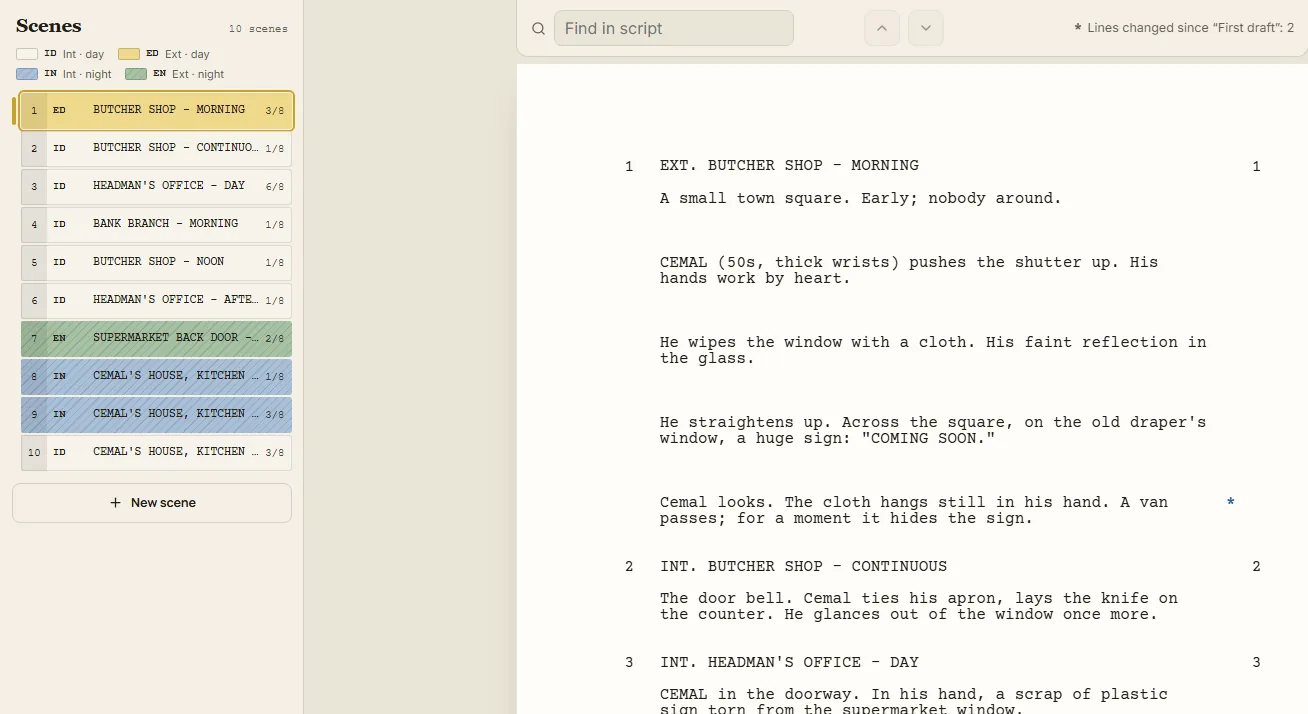
Read your script the way a reader will
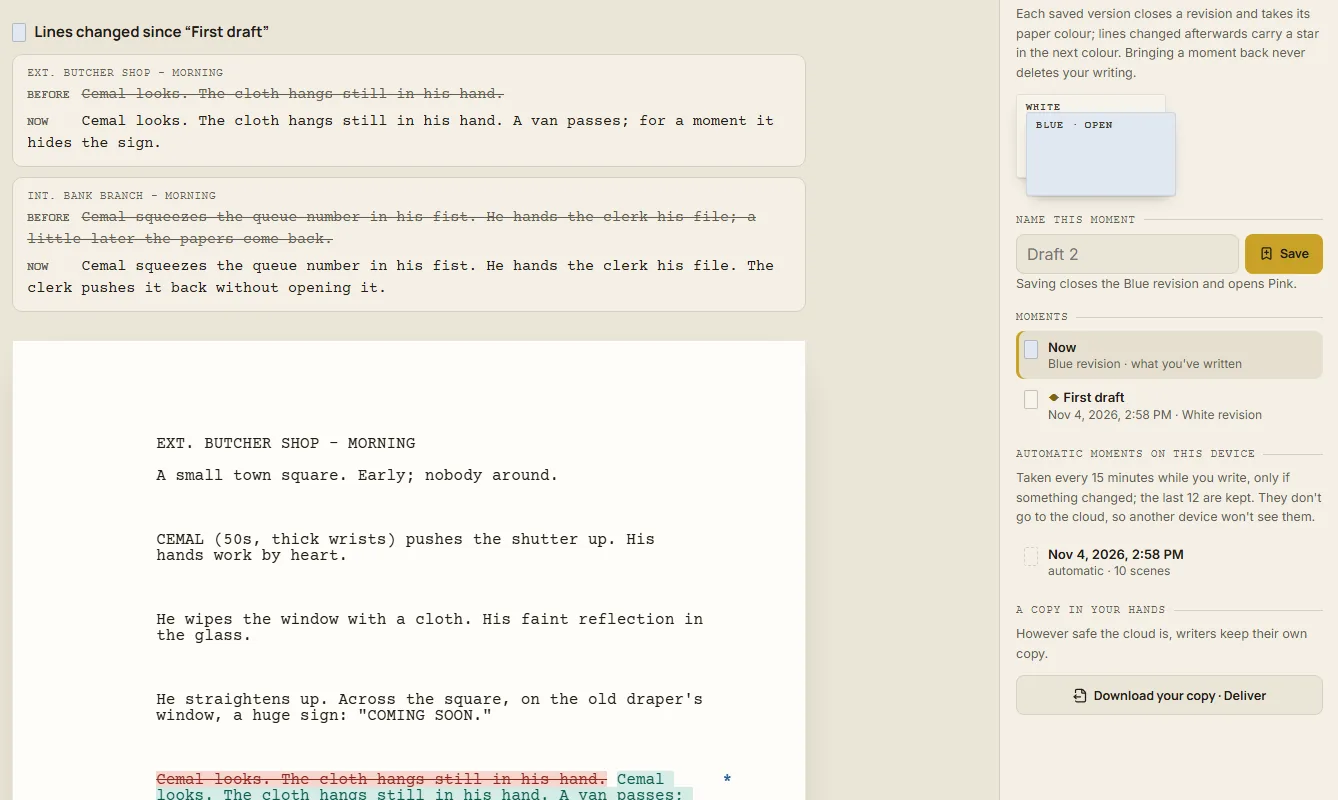
Review opens the script like a reading copy: scenes are numbered on both edges of the page, and lines changed since your last saved version are marked in the margin with an asterisk. Find in script takes you to any word; on the left, the scene strip shows whether each scene is interior or exterior, day or night, and how many pages it runs.
Keep every draft, see what changed
In Versions you save the script as it stands under a name: "first draft", "after the producer's notes". Each saved version closes a revision and the next one follows the industry's colour order: white, blue, pink, yellow, green… Then you see the lines changed since that version marked with an asterisk in the margin.
Restoring an old version never deletes what you have today. While you write, Senaryum also saves a moment by itself every fifteen minutes if something changed; the last twelve moments stay on this device. Download a copy to your own computer whenever you like.
Get a character and location report
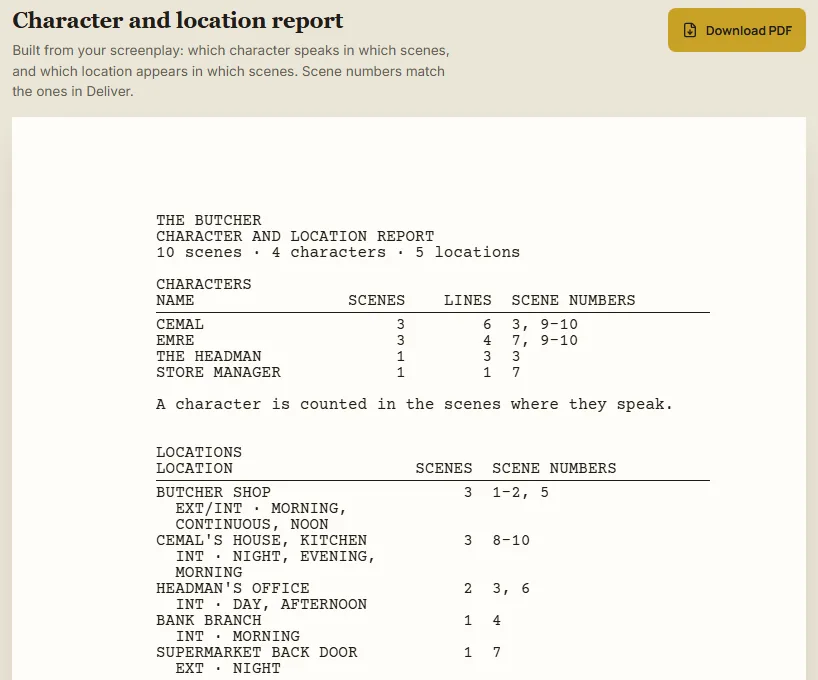
The report comes out of the script by itself. For every character: in how many scenes they speak, how many lines they have and which scenes they're in. For every location: interior or exterior, at what times and in which scenes. Scene numbers match the PDF you'll send. Download the report as a PDF too.
Get a PDF ready to send
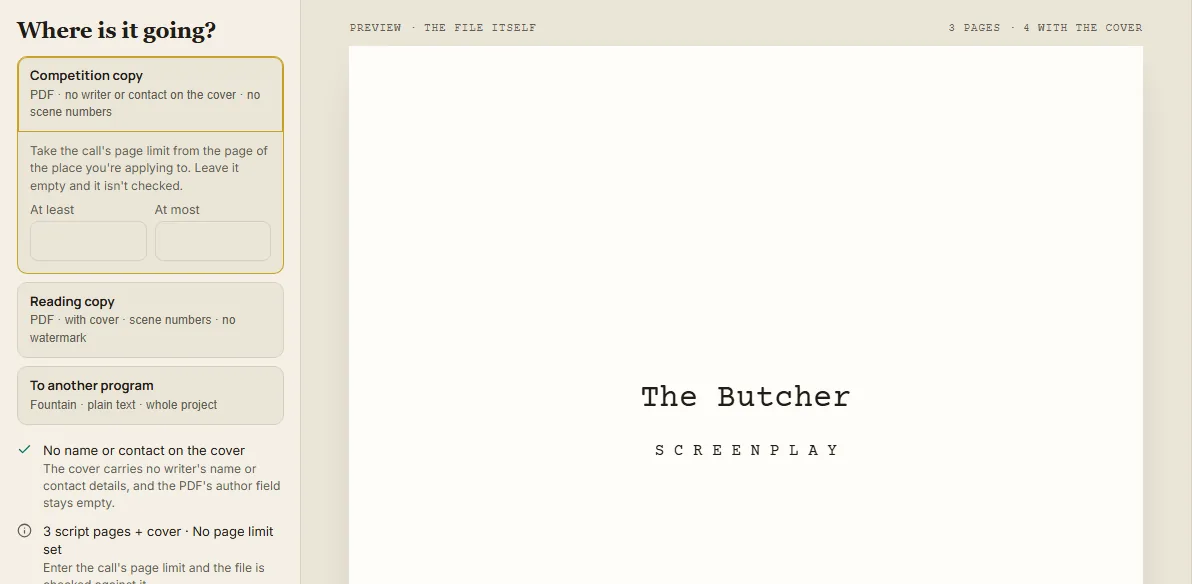
Choose where the script is going — competition copy or reading copy — fill in the title page and download the PDF. See the same text in a two-column layout too. After a rewrite, lines changed since your saved version are marked with an asterisk, and the revision PDF carries only the changed pages.
In the competition copy your name and contact details stay off the title page and scenes come out unnumbered. Enter the page limit of the call you're applying to; Senaryum shows whether the script fits it and reminds you that your name shouldn't appear in the text.
Senaryum is getting its own apps.
We're working on the following. They aren't available yet.
- Standalone Senaryum apps: desktop and mobile apps for people who only want to write. Senaryum inside Senaryo Okulu carries on as it is.
- An AI assistant: instant feedback, suggestions and analysis on the scene you've written. It won't write the script for you; it reads what you wrote and shows you where it holds and where it slips.
- Mentoring from professional screenwriters: work on your script with an experienced screenwriter.
Questions
Do I need an account?
You start writing without an account — Senaryum opens straight away. With an account you download what you've written, keep versions and carry on from another device.
Can I move my script to Final Draft?
Yes. In Deliver you download your script in Final Draft's own format (.fdx). It works the other way too: bring a script in from a Final Draft, Fountain or PDF file.
Does it work on a Mac?
Yes. Senaryum runs in the browser, so it's the same on Mac, Windows and Linux; there's nothing to install.
Which languages does it speak?
The interface and the screenplay come in English, Turkish, Spanish and Portuguese. If your browser shows this page in another language, that's your browser's own translation.